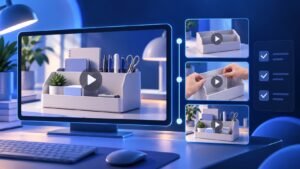

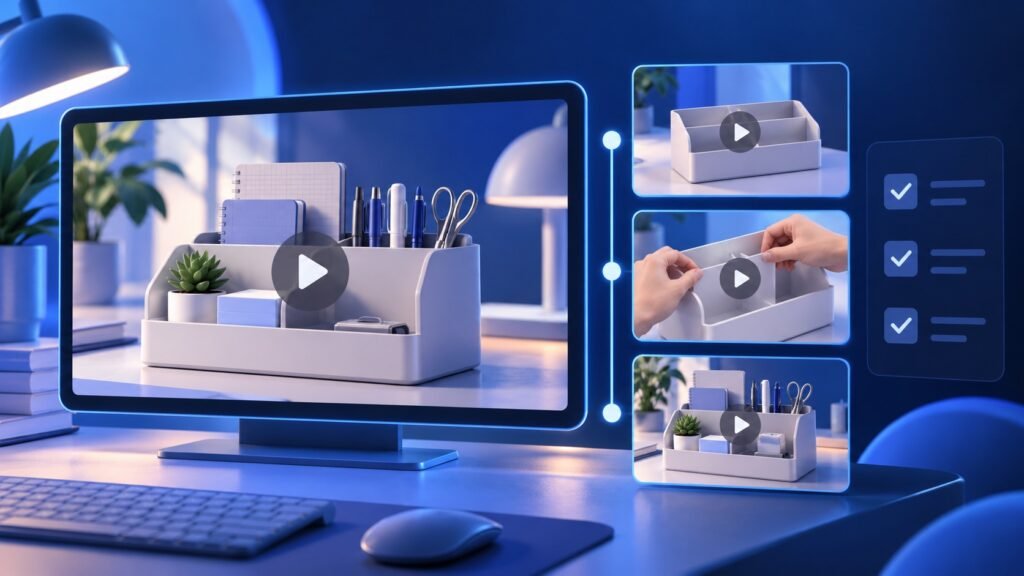
To create a YouTube playlist in Studio, select Create → New playlist, enter a title and description, choose its visibility and video order, add the videos and create the playlist. YouTube’s official Studio playlist guide documents this desktop workflow.
For a business channel, start with the customer’s next question. A useful playlist can introduce a product, demonstrate its setup and explain a common adjustment. This guide shows how to organize those videos, check the viewing path and build an original planning worksheet for your next series.
Give the playlist one useful job
Choose a specific audience and task before collecting videos. “Getting started with our label printer” tells a visitor more than “Our videos.” It also gives your team a clear rule for deciding which uploads belong together.
List the questions a viewer is likely to ask in order. Someone comparing products may need a side-by-side demonstration first. Someone who already owns the product may want setup, routine use and troubleshooting. Build separate playlists when those starting points need substantially different videos.
Use the videos you already have where they answer the question well. Mark gaps that need filming rather than adding unrelated uploads to make the playlist longer. Our product demo video script template can help turn a missing answer into a recording brief.
Create the playlist in YouTube Studio
- Sign in to YouTube Studio on a computer.
- Choose Create at the top right, then New playlist.
- Write the playlist title and description.
- Select the visibility setting and the arrangement for the videos.
- Choose Add videos, select the relevant uploads and click Create.
For later changes, open Content → Playlists. Use Details to update the title or description and save. The playlist’s menu also offers Edit on YouTube, where you can manage its order and use Share to obtain the viewing link.
Write the description for a visitor who has not watched anything yet. State who the series helps, what it covers and where to start. Keep product names and versions specific enough that viewers can recognize the right instructions.
Choose visibility to match the viewing route
YouTube’s playlist privacy guide distinguishes three settings. Public suits a series you want people to discover. Unlisted lets people with the link watch and share it, which can suit a series sent through a customer welcome page. Private keeps the playlist out of the public viewing route.
Choose the setting deliberately, then test the individual videos as a visitor. For a public product series, confirm that each intended lesson plays outside the channel owner’s account. Keep an internal planning version separate from the link your sales or support team sends to customers.
Arrange videos around the customer’s progress
Begin with the video that supplies the knowledge needed for the next one. A setup series may start with identifying parts, continue with the first complete use and finish with a useful adjustment. A buying guide may begin with the overall comparison and then explain the differences in detail.
YouTube’s playlist management instructions describe dragging videos up or down to reorder them. They also state that this reordering feature is unavailable for playlists containing only Shorts. The worked sequence below uses regular videos.
Each video should still answer its own question. Introduce the product or task briefly, deliver the promised explanation and make the following lesson a natural continuation. Clear titles help a visitor choose an individual answer without watching the entire series.
A fictional three-video product series
Imagine a small shop publishing a desk label-printer series. Its playlist is called “Set Up and Use Your Desk Label Printer.” The description introduces three lessons: prepare the printer, print the first storage label and adjust the layout for a narrower container.
| Video | Question and demonstration |
|---|---|
| 1. First setup | What do I prepare before printing? Show the actual model’s parts and the correct setup sequence. |
| 2. First label | How do I make a storage label? Demonstrate the complete action from entering the text to applying the printed label. |
| 3. Adjust the layout | How do I fit a narrower container? Show a supported layout change and the finished result. |
This is an original planning example, not a customer case study. A real team would verify the model’s instructions before filming. The sequence works as a brief because each lesson names a question, a visible action and a result the viewer can recognize.
Use this playlist planning worksheet
Copy these fields into your content plan. Complete the first four before opening Studio, then finish the checks after publishing.
- Audience: Who is arriving, and what do they already know?
- Playlist promise: What will these videos help them do?
- Video order: Which answer comes first, and what does each following lesson add?
- Missing lesson: What needs recording or updating before the sequence makes sense?
- Visibility and viewing link: How will the intended audience reach the playlist?
- Visitor check: Who verified that every video opens and matches its title?
- Review note: What customer question or viewing observation should inform the next revision?
Make the finished playlist easy to find
You can feature a playlist on your channel Home tab. In Studio, open Customization → Home tab, turn the Home tab on if it is off, then choose Add section under Layout, select the playlist option and publish. YouTube’s channel layout instructions describe the available playlist sections.
Check the published channel on a phone and open the series from the section. Confirm the title is understandable, the first video is the intended starting point and the following videos remain relevant. Send the playlist’s shared link when the whole sequence answers the customer’s question.
Connect individual videos thoughtfully too. Our YouTube end-screen guide helps plan a useful invitation at the end of an upload. For longer lessons, the chapters and timestamps guide helps viewers find a specific section inside the video.
Prepare the series for your next promotion
Keep the worksheet with your campaign plan and assign someone to review the series when products, instructions or customer questions change. A coherent viewing path gives interested visitors a clear place to continue learning.
Ready to plan promotion around a finished video? Explore Famix YouTube views packages and keep the correct video link ready for the selected service. Use your playlist to connect that video with the next helpful answer on your channel.
Author Profile

- Basit Ali is a digital entrepreneur and SEO specialist dedicated to helping brands and creators scale their online presence. Based in Lahore, he brings hands-on expertise in technical SEO, organic reach, and social media marketing. At Famix, Basit shares actionable insights and proven strategies for hacking platform algorithms, building authentic engagement, and turning casual scrollers into a dedicated, monetized audience across TikTok, Instagram, and Facebook.
Latest entries
 Social Media Growth StrategyOctober 20, 2026Social Media Campaign Brief Template for Small Businesses
 YouTube Growth and MonetizationOctober 18, 2026How to Create a YouTube Playlist for Product Demos
 Social Media Growth StrategyOctober 18, 2026How to Add a Link to an Instagram Story: Business Guide
 Social Media Growth StrategyOctober 15, 2026How to Pin Instagram Posts: A Business Profile Checklist