

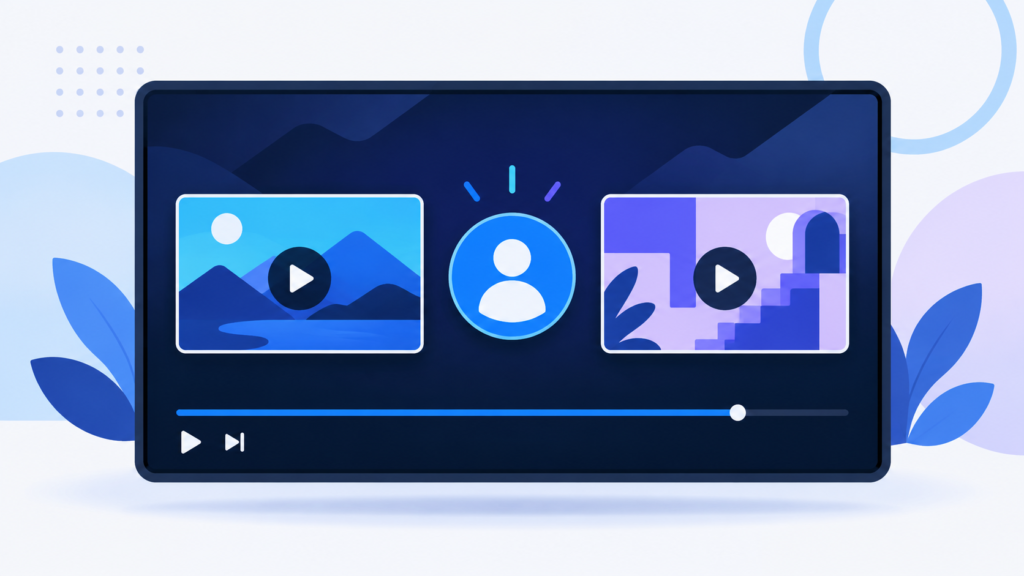
A useful YouTube video answers one question. A well-planned ending gives the viewer a clear reason to continue. For a business channel, that next step might be a setup tutorial, a product comparison or a demonstration that answers the next buying question.
To add a YouTube end screen, open the video in YouTube Studio, choose Editor → End screen, add your elements and save. The guide below pairs that setup with an original planning example you can adapt before your next launch.
Check the video and choose its destination
Your video must be at least 25 seconds long, according to YouTube’s upload guidance.
End screens occupy the final 5–20 seconds. Standard 16:9 videos support up to four elements; other shapes may support fewer. They are unavailable on videos designated made for kids. External website elements require YouTube Partner Program membership. These requirements come from YouTube’s end-screen documentation.
Before opening the editor, decide what a satisfied viewer would want to learn next. Write that question in plain language, then choose the video that answers it. “How do I use this?” is a more useful brief than “send people somewhere on the channel.”
Add the end screen in YouTube Studio
- In Studio, select Content and open your video.
- Choose Editor → End screen. Start with a template or add elements.
- For a video element, select a particular video, your latest upload or Best for viewer. Other options include a playlist, Subscribe and another channel.
- Adjust placement in the preview and timing on the timeline. Play the preview, then click Save.
This is the workflow documented in YouTube Help. Keep the first version simple: one clearly relevant video and a subscription prompt can be easier to explain in your closing line than several competing choices.
Check the ending with the actual footage visible. The recommendation should sit beside the product, presenter or final demonstration, with enough clear space to recognize both. If your video already finishes tightly, plan a more deliberate closing shot for the next recording.
Match the next video to the viewer’s question
Choose a destination for its usefulness at this point in the viewing journey. A recent upload is not automatically the strongest follow-up to an older tutorial. Use this original decision table as a planning aid.
| What the current video answers | A useful next-video brief |
|---|---|
| “Which product fits my needs?” | Show the selected product working in a specific everyday situation. |
| “How do I set it up?” | Demonstrate the first task the customer will perform after setup. |
| “Why is my result inconsistent?” | Walk through one diagnosis and show the adjustment clearly. |
| “What can this service do?” | Explain the process, required inputs and what a customer should prepare. |
For a sequence of lessons, map the order before you film. Each video should work on its own while making the following lesson feel like a natural continuation. Our product demo video script template can help turn the next topic into a shootable brief.
Organize a multi-video sequence with our YouTube playlist guide for product demos. It covers creation, video order and a planning worksheet for connecting each lesson with the next customer question.
Worked example: a coffee-grinder tutorial
Fictional planning example: imagine a kitchen shop publishing a 4-minute-30-second tutorial called “Set up your grinder for your first morning coffee.” Its next video explains how to adjust grind size when coffee tastes too weak or too strong.
The team reserves 4:15–4:30 for the ending. The camera holds on the finished cup and grinder, leaving a quiet area for the next-video element. The presenter’s closing line is: “Your grinder is ready. Next, see how to adjust the grind when the flavour needs a change.”
The chosen destination answers a likely follow-up question without repeating the setup lesson. Its title and thumbnail should make that relationship obvious. Before publishing, the editor checks that the spoken promise matches what the linked video actually teaches.
A second team member watches the ending without reading the brief. Ask them what they expect after clicking. If their answer differs from the destination, improve the closing sentence or select a better follow-up. This gives you a practical quality check before collecting performance data.
If the setup tutorial needs clearer navigation within the video, use our YouTube chapters and timestamps guide alongside this ending plan.
Copy this end-screen planning worksheet
Complete one row per field for each important upload. Keep the worksheet with the video brief so the writer, presenter and editor use the same next step.
| Field | What to record |
|---|---|
| Current promise | The exact question this video resolves. |
| Next question | What a satisfied viewer is ready to learn or compare. |
| Destination | The chosen video title and URL, checked by a teammate. |
| Closing sentence | One spoken reason to watch that destination. |
| Visual space | Where the recommendation can fit without hiding the demonstration. |
| Review note | The date, current setup, observed response and one proposed adjustment. |
Review the response and improve one thing
For the selected video, open Analytics → Engagement. The End screen element click rate report shows how often viewers click each element. YouTube’s engagement report guide also explains the audience-retention report, which helps you inspect attention across the video.
Use the two views to choose a sensible next experiment. If attention falls before the closing section, review whether the final explanation runs too long. If the ending holds attention but the next step attracts little response, reconsider the match between the destination and your closing promise.
Record the original setup before changing it. Adjust one element of the plan at a time—such as the destination or spoken invitation—and compare similar review periods. Treat small samples as early observations, then return when you have more viewing activity.
For a separate route from a short clip to a fuller tutorial, follow our YouTube Shorts related-video guide.
Prepare the viewing journey before promotion
A clear ending gives your launch a purposeful next step. Finish the video, check its follow-up destination and prepare your review notes before coordinating promotion.
Ready to plan the campaign? Explore Famix YouTube views packages, compare the available options and keep the exact video link ready. Pair the promotion plan with a channel that gives interested viewers something useful to watch next.
Author Profile

- Basit Ali is a digital entrepreneur and SEO specialist dedicated to helping brands and creators scale their online presence. Based in Lahore, he brings hands-on expertise in technical SEO, organic reach, and social media marketing. At Famix, Basit shares actionable insights and proven strategies for hacking platform algorithms, building authentic engagement, and turning casual scrollers into a dedicated, monetized audience across TikTok, Instagram, and Facebook.
Latest entries
 Social Media Growth StrategyOctober 20, 2026Social Media Campaign Brief Template for Small Businesses
 YouTube Growth and MonetizationOctober 18, 2026How to Create a YouTube Playlist for Product Demos
 Social Media Growth StrategyOctober 18, 2026How to Add a Link to an Instagram Story: Business Guide
 Social Media Growth StrategyOctober 15, 2026How to Pin Instagram Posts: A Business Profile Checklist